How to Register and Use ADK Agents (on Agent Engine) with Gemini Enterprise
So, you’ve built a custom agent using Google’s Agent Development Kit (ADK). It’s deployed on Vertex AI’s Agent Engine platform, and it’s ready to work. But right now, it’s just code sitting in the cloud. How do you get it into the hands of your users?
The answer is Gemini Enterprise (formerly known as Agentspace).
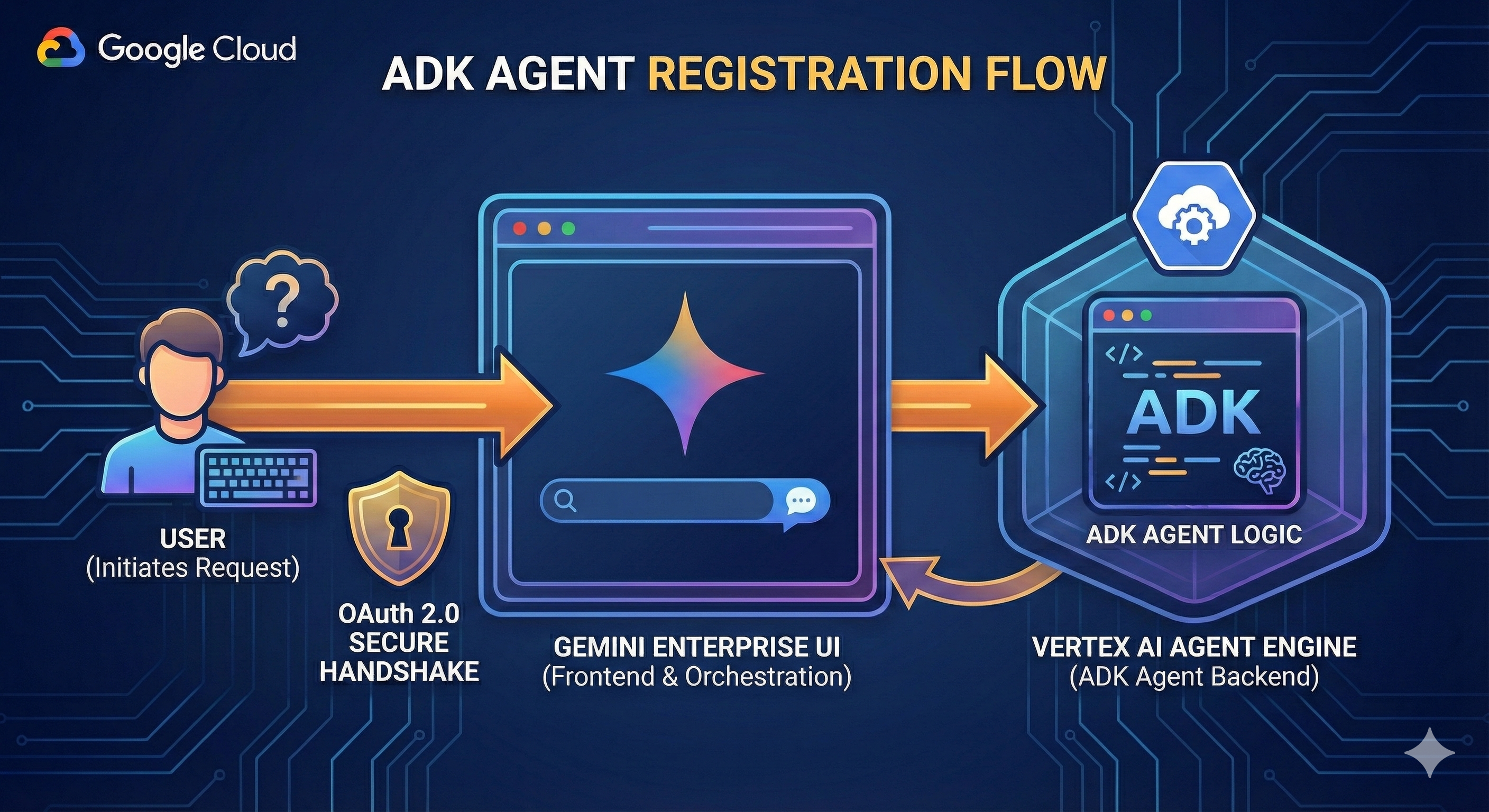 Figure 1: ADK Agents on Agent Engine with Gemini Enterpise UI
Connecting your backend logic to the frontend Gemini Enterprise UI requires precise configuration, involving various resource IDs, security checks, and authentication flows. But don’t worry. This guide will walk you through registering your ADK agent, determining if OAuth is required, and getting your agent ready for your users.
📝 A Note on Documentation: If you have struggled to find clear instructions on this process, you are not alone. The official documentation has lagged slightly behind the actual product releases- no doubt due to the pace at which these products are being developed at Google! This guide aims to bridge that gap and get you up and running today based on my experiences working with Gemini Enterprise, ADK and Agent Engine.
Table of Contents
- The Deployment Dilemma: Custom UI vs Managed
- The Gemini Enterprise Advantage
- Architecture: User to Agent Flow
- Prerequisites
- CURL Registration Step 1: The OAuth Setup (Optional)
- CURL Registration Step 2: Registering via API (The Code)
- UI Registration Alternative: Registering via the UI (New!)
- Test Drive & User Experience
- Pro Tips: Real-time Status Updates
- Conclusion
The Deployment Dilemma: Custom UI vs. Managed Platform
Before we dive into the configuration, it is worth addressing a common question: “Why don’t I just build my own UI?”
Technically, you can. The “Do It Yourself” approach involves wrapping your agent in a custom web app (like Streamlit or React), deploying it to Cloud Run, and securing it with Identity-Aware Proxy (IAP). While this offers pixel-perfect control, it comes with a heavy operational tax:
- Developer Overhead: You move from building agents to maintaining software products. You are now responsible for session management, frontend bug fixes, and security patching.
- Scalability & Sprawl: If you have 20 agents, you end up with 20 different Cloud Run services and 20 different URLs for users to bookmark. This fragmentation kills adoption.
- Governance Blind Spots: Custom UIs are harder to audit. It becomes difficult to maintain a centralised view of “who is using what” across the organisation.
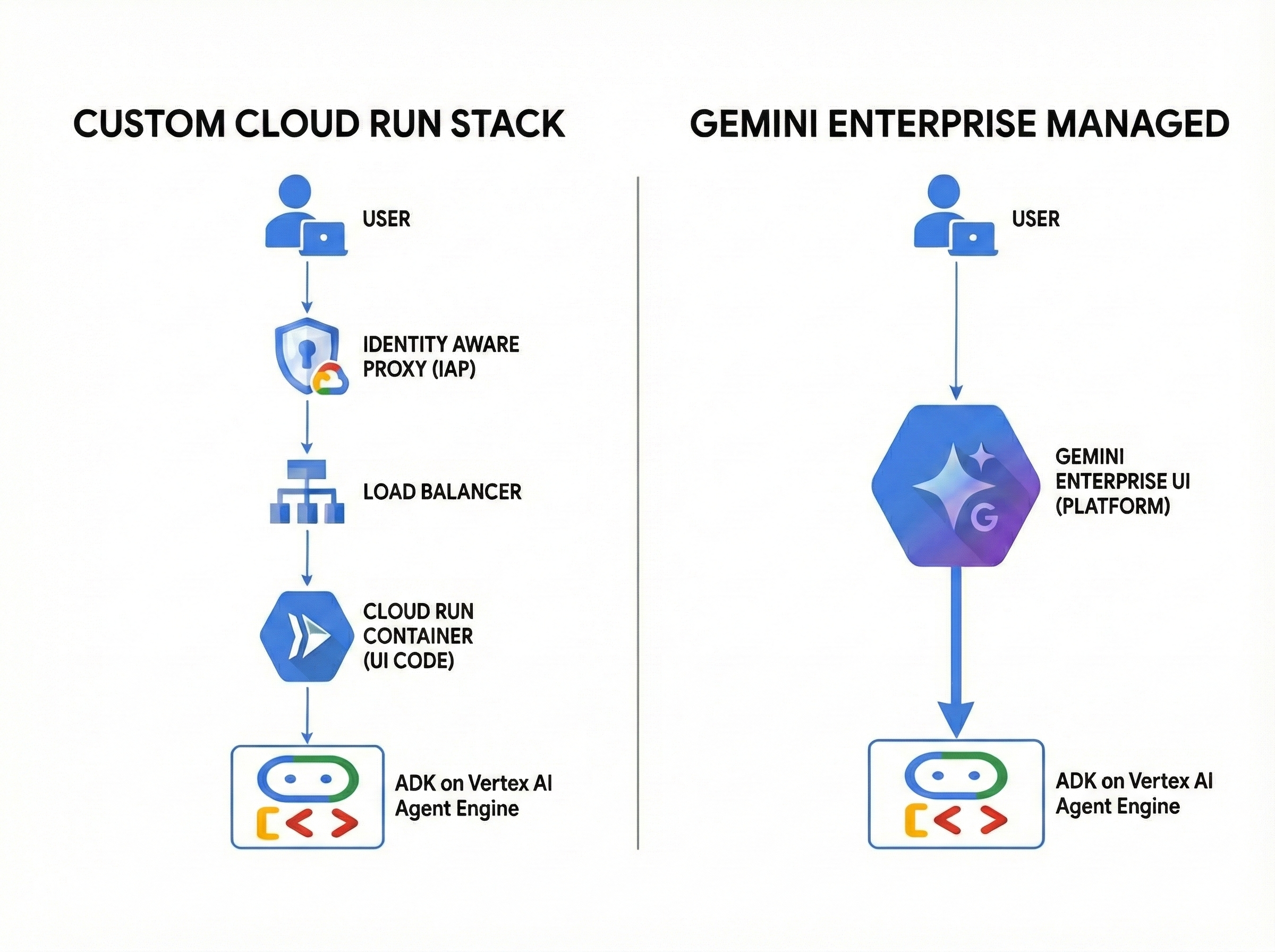 Figure 2: Gemini Enterprise Managed UI vs Custom Developed UI
The Gemini Enterprise Advantage
Gemini Enterprise is designed to solve these scalability issues. It acts as a centralised “App Store” for your organisation’s agents. It handles the UI, authentication, and governance automatically, allowing you to focus strictly on the agent’s logic.
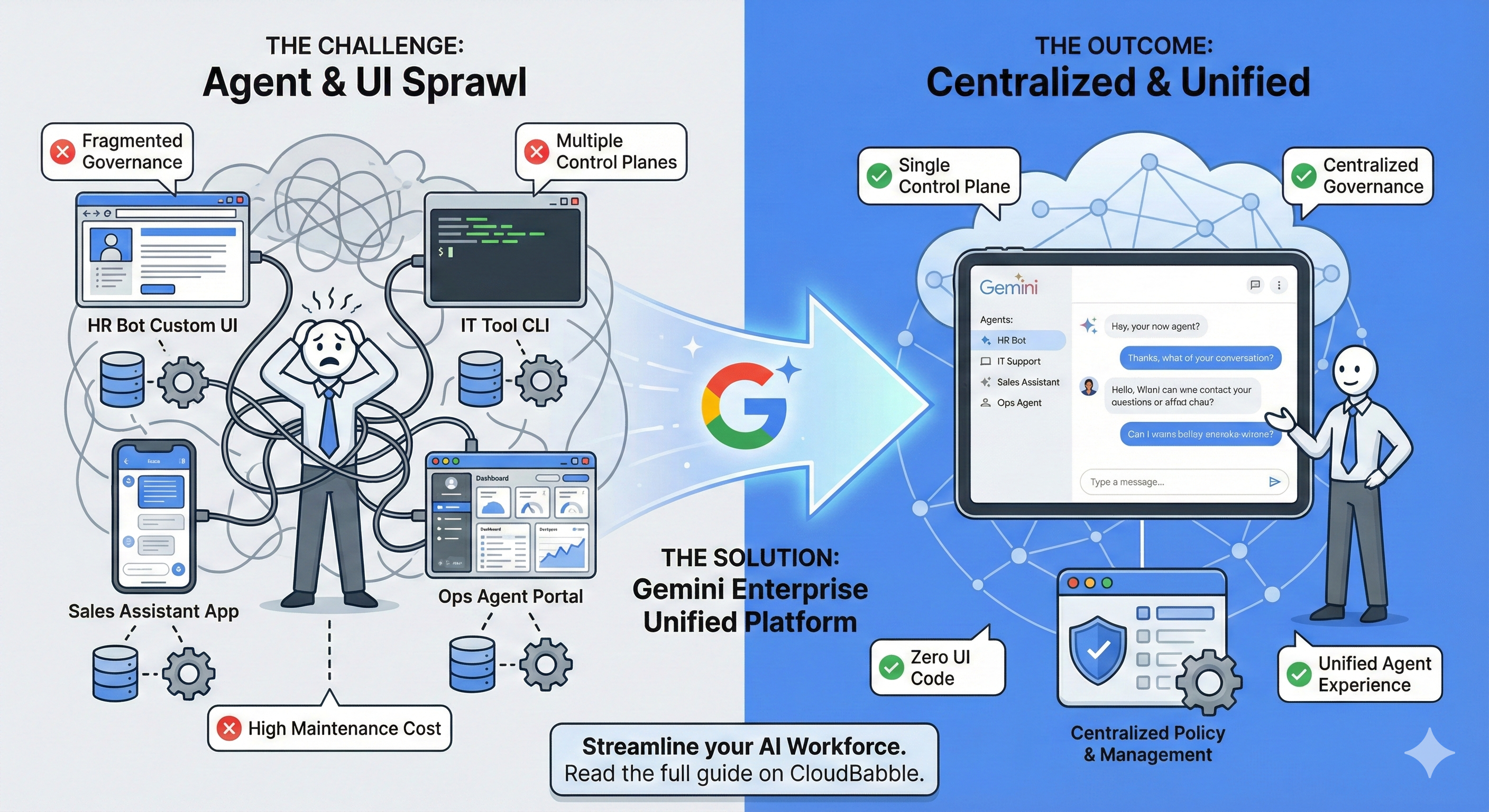 Figure 3: Gemini Enterprise Managed Agents
Why it solves the scale problem:
- One Interface for All Agents: Users go to one URL. They see a catalogue of all agents available to them (HR, IT, Sales) based on their IAM permissions.
- Zero UI Code: You deploy the logic (the ADK backend), and Gemini Enterprise renders the UI automatically. You never have to write a React component or fix a CSS bug again.
- Unified Context: Because the agents live in the same “space” as Google Workspace, they have native access to Drive/Docs/Gmail context without you writing complex OAuth handshakes for every single agent.
- Centralised Governance: Admins can turn off specific agents, audit logs, and enforce data residency policies globally, rather than chasing down individual Cloud Run deployments.
Custom UI vs Gemini Enterprise UI Comparison
Deciding whether to build a bespoke interface or leverage the managed platform ultimately comes down to a trade-off between granular control and operational efficiency. The table below outlines the key differences in effort, reach, and maintenance to help you determine the best fit for your agent’s deployment.
| Feature | Custom UI (Cloud Run + IAP) | Gemini Enterprise |
|---|---|---|
| Setup Effort | High (DevOps, Frontend, Auth) | Low (Register & Go) |
| Maintenance | High (Patching UI, fixing bugs) | Zero (Managed by Google) |
| Discoverability | Low (Emailing links) | High (Central Catalogue) |
| Scaling & Governance | Fragmented: 20 agents = 20 separate apps to secure, monitor, and update individually. Hard to audit globally. | Unified: Single control plane. Centralized IAM, audit logs, and data policies apply to all agents automatically. |
| Use Case | Niche: Highly specialised visual needs (e.g., an agent that renders interactive 3D CAD models). | Standard: 95% of internal business agents (Chat, Text, Charts, File Analysis). |
What is the goal?
The goal is to take a “headless” agent deployed on Vertex AI Agent Engine and register it so that:
- Users can discover and chat with it in the centralised Gemini Enterprise Web App.
- The agent can securely act on behalf of the user (e.g., sending emails or querying private data).
Visualising the Flow: From User Command to Agent Execution
It helps to understand the integration we are building. We are setting up a pipeline where Gemini Enterprise acts as the orchestration layer between the user and your custom logic.
As illustrated in the diagram below, the process follows a distinct four-step path:
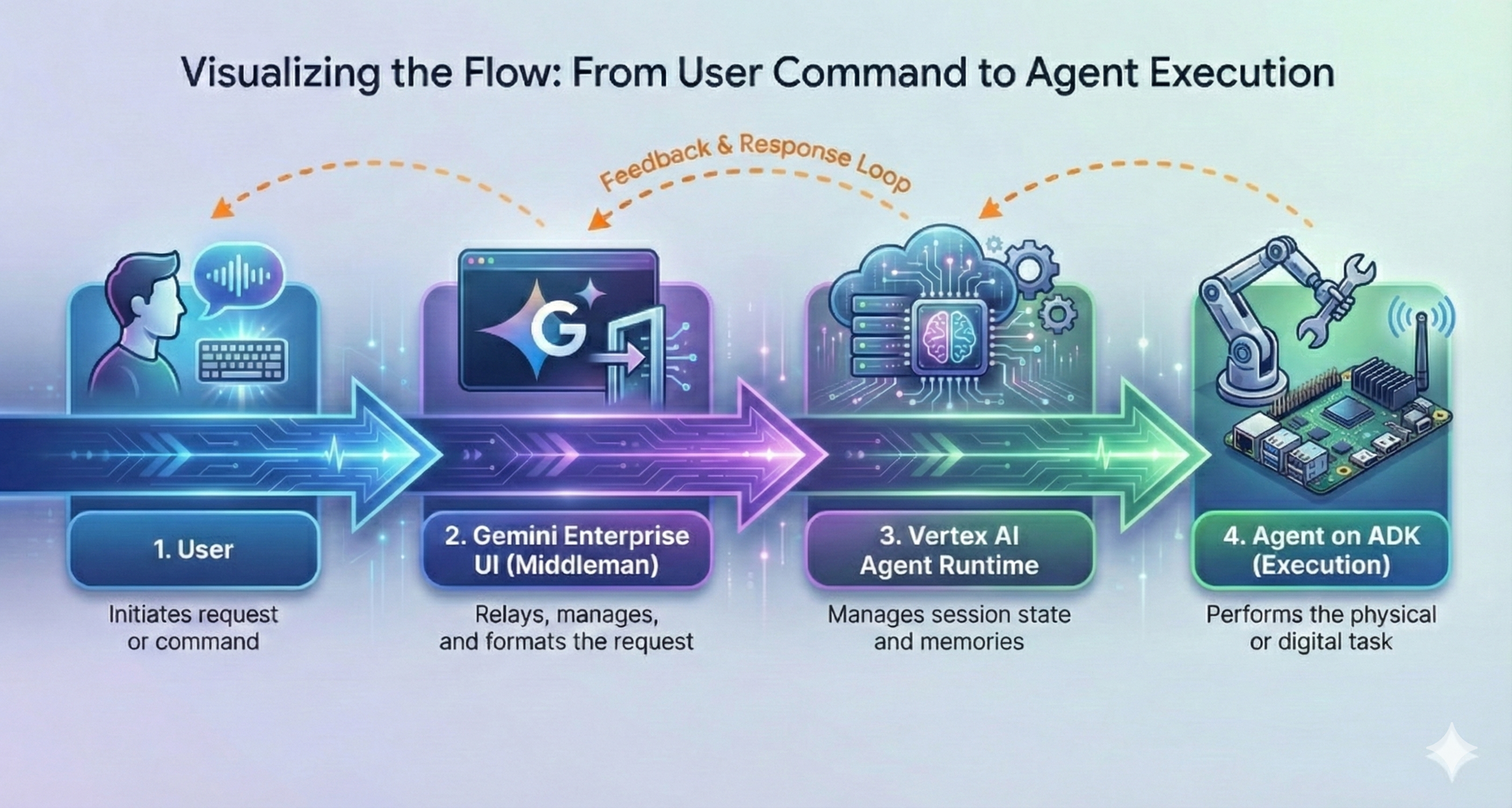 Figure 4: User to Agent interaction via Gemini Enterprise UI
- User: The flow begins when the user initiates a request or command via text or voice.
- Gemini Enterprise UI (The Middleman): Instead of hitting your code directly, the request hits the managed UI. This layer handles authentication, relays the message, and formats the request.
- Vertex AI Agent Engine Runtime: This is the runtime environment of the agents. It manages the session state and memories, ensuring that context is preserved across the conversation.
- Agent on ADK (Execution): Finally, the request reaches your custom ADK agent. This is where the physical or digital task is performed (e.g., querying a database, running a calculation or whatever function the agent completes).
- The Feedback Loop: Crucially, notice the Feedback & Response Loop (the orange arrows). Your ADK agent doesn’t just return a final answer; it can send intermediate status updates back through the runtime to the UI, keeping the user informed while complex tasks are executing.
Prerequisites
Before we start sending curl commands, let’s make sure your environment is ready.
- Admin Access: You need the agents.manage permission (usually part of the Discovery Engine* Admin role) to register agents.
- Service Account Roles: Ensure your discoveryengine service account has Vertex AI User and Vertex AI Viewer roles. This is required for Gemini Enterprise to actually call your agent.
- Deployed Agent: We assume you have already deployed your agent to Vertex AI Agent Engine and have your Agent Engine Resource Name (AE_RESOURCE_NAME) handy.
*You will see references to ‘Discovery Engine’ throughout this guide (and Google’s documentation). It’s not unusual for Google products to be rebranded, and Discovery Engine is a symptom of this. Services like Gemini Enterprise, and Vertex AI Search both use the Discovery Engine API.
Step 1: The OAuth Setup (Optional but Critical)
Does your agent need to do things on behalf of the user, like checking their Calendar or querying a private BigQuery table, limiting access to only tables the user has access to? If yes, you need OAuth. If your agent is just a calculator or a public info bot, you can skip to Step 2.
i. Configure your Provider
First, register your app with your OAuth 2.0 provider (like Google Cloud) to get a Client ID and Client Secret .
🚨 Critical Step: You must add the following URL to your “Allowed Redirect URIs” list in your OAuth application. Gemini Enterprise handles the callback automatically, but only if you whitelist this address:
https://vertexaisearch.cloud.google.com/oauth-redirect
ii. Create the Authorisation Resource
Now, tell Gemini Enterprise about your OAuth credentials. This creates a resource ID that we will link to the agent later.
Run this command (replacing the capitalised placeholders with your project details):
curl -X POST \
-H "Authorization: Bearer $(gcloud auth print-access-token)" \
-H "Content-Type: application/json" \
-H "X-Goog-User-Project: PROJECT_ID" \
"https://discoveryengine.googleapis.com/v1alpha/projects/PROJECT_ID/locations/global/authorizations?authorizationId=AUTH_ID" \
-d '{
  "name": "projects/PROJECT_ID/locations/global/authorizations/AUTH_ID",
  "serverSide0auth2": {
    "clientId": "OAUTH_CLIENT_ID",
    "clientSecret": "OAUTH_CLIENT_SECRET",
    "authorizationUri": "OAUTH_AUTH_URI",
    "tokenUri": "OAUTH_TOKEN_URI"
  }
}'
- PROJECT_ID: The associated Google Cloud Project ID.
- AUTH_ID: The ID of the authorisation resource. This is an arbitrary ID you define to reference later when an Agent requires OAuth support.
- OAUTH_CLIENT_ID: OAuth 2.0 client identifier issued to the client.
- OAUTH_CLIENT_SECRET: OAuth 2.0 client secret
- OAUTH_AUTH_URI: Specifies the endpoint for obtaining an authorisation code from a third-party authorisation service for OAuth 2.0. For Google, this is typically https://accounts.google.com/o/oauth2/v2/auth.
- OAUTH_TOKEN_URI: Endpoint URL where the application can exchange an OAuth 2.0 authorisation code for an access token. For Google, this is typically https://oauth2.googleapis.com/token.
The name field of the authorisation resource must be used to reference this authorisation resource later, when registering the corresponding Agent.
OAuth 2.0 Handshake Sequence Overview
This diagram illustrates how we securely give the Python Agent permission to do work on your behalf without ever sharing your actual password with it. Think of this process like giving a valet a key to your car- you give them a specific key (the Access Token) that allows them to drive, but doesn’t give them ownership of the car.
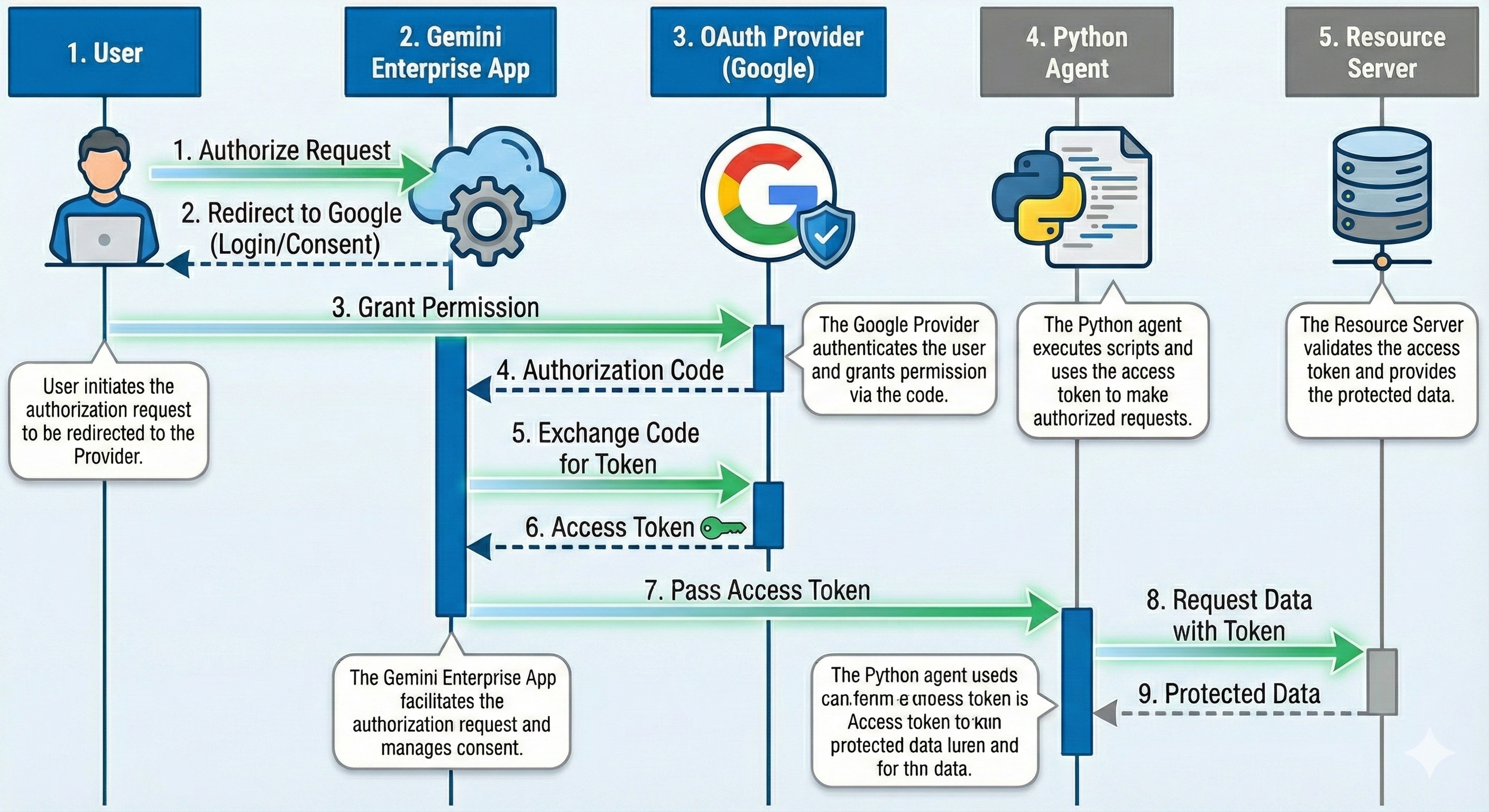 Figure 5: The OAuth 2.0 “Handshake” Sequence
The OAuth Workflow Explained
1. User Consent (Steps 1–3): The process begins when you click “Authorise.” You are temporarily redirected to Google to log in and confirm that you trust this application. This ensures that you are the one granting permission.
2. The Secure Exchange (Steps 4–6): Once you say “Yes,” Google sends a temporary “Authorisation Code” to the Gemini Enterprise App. The App immediately exchanges this code for a secure digital key, known as an Access Token. This exchange happens entirely in the background to ensure the key remains secure.
3. The Handoff & Execution (Steps 7–9): This is the crucial step. The Gemini App passes the Access Token to the Python Agent. Now holding the “key,” the Agent can independently contact the Resource Server to retrieve the data it needs to complete your task.
Key Takeaway: The Python Agent never sees your username or password. It only receives a temporary token that allows it to access specific data for a limited time.
Step 2: Registering the Agent with Gemini Enterprise
This step establishes the critical link between your ADK backend on Vertex AI Agent Engine and the Gemini Enterprise frontend. To register the agent, you must construct an API request that configures its user-facing identity and the semantic routing logic used by the orchestration layer.
Core Configuration Parameters
- displayName: The identifier visible to users within the interface (e.g., “Invoice Helper”).
- description: A functional summary displayed to the user, explaining the agent’s specific capabilities (e.g., “Extracts key data points from uploaded invoice documents”).
- tool_description: The system definition used by the LLM for intent matching. This prompt guides the orchestration layer on when to route specific user requests to this agent.
- provisioned_reasoning_engine: The unique resource identifier (URI) pointing to your execution logic hosted on Vertex AI.
The Registration Command
Execute the following request to finalise the registration:
The Command
curl -X POST \
-H "Authorization: Bearer $(gcloud auth print-access-token)" \
-H "Content-Type: application/json" \
-H "X-Goog-User-Project: PROJECT_ID" \
"https://discoveryengine.googleapis.com/v1alpha/projects/PROJECT_ID/locations/global/collections/default_collection/engines/APP_ID/assistants/default_assistant/agents" \
-d '{
  "displayName": "Insurance Claim Agent",
  "description": "Automates the processing of insurance claim submissions.",
  "adk_agent_definition": {
    "tool_description": "Use this tool to process customer insurance claims for...",
    "provisioned_reasoning_engine": {
      "reasoning_engine": "projects/PROJECT_ID/locations/REASONING_LOCATION/reasoningEngines/AE_RESOURCE_NAME"
    },
    "authorizations": [
      "projects/PROJECT_ID/locations/global/authorizations/AUTH_ID"
    ]
  }
}'
Note: The authorisations block is only needed if you completed Step 1.
Alternative: Registration via the Gemini Enterprise UI
Historically, registering agents required interacting directly with the API via curl commands. While that remains the gold standard for automated CI/CD pipelines, a new update to Gemini Enterprise has introduced a full UI workflow. You can now register agents manually for testing or ad-hoc setups without writing a single line of code.
Here is how to register your ADK Agent using the new visual interface:
1. Navigate to Agents From your Gemini Enterprise App page, select Agents from the left-hand menu and click the + Add agent button.
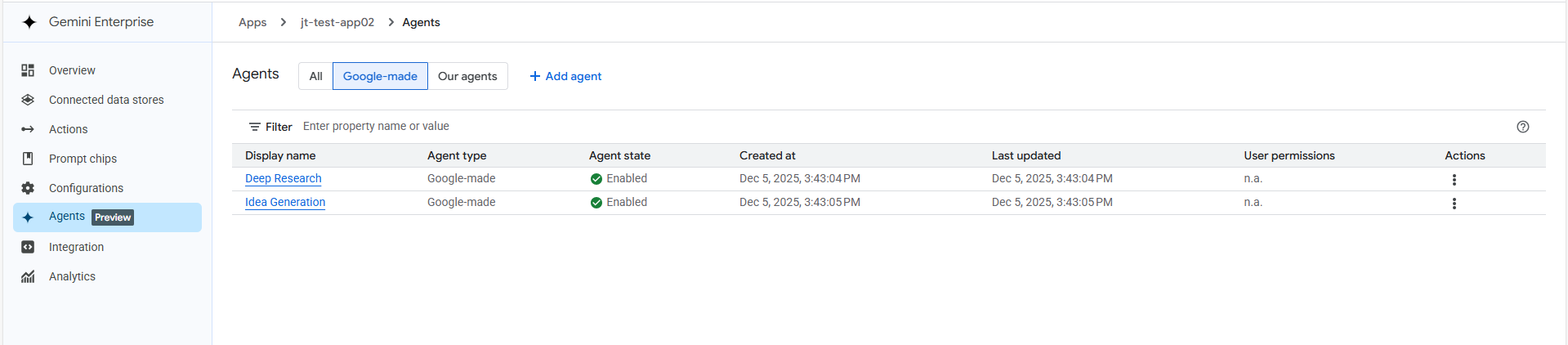 Figure 6: Example Gemini Enterprise Add Agents via UI Screenshot
2. Select Agent Type You will be presented with options for various agent sources. Select Custom agent via Agent Engine and click Add. This specifically targets agents built by your organisation that follow your company policies.
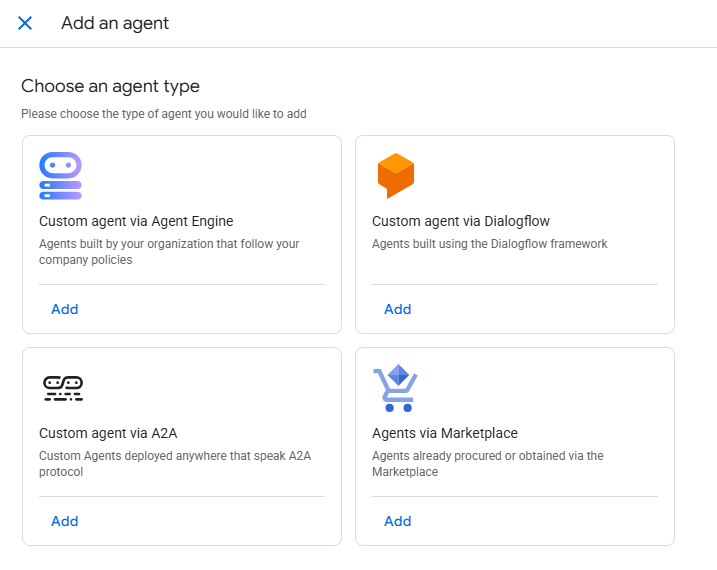 Figure 7: Example Gemini Enterprise Agent Types Screenshot
3. Configure Authorisations (Optional) If your agent requires OAuth (as discussed in Step 1 of the API guide), you can configure it here.
- Enter an Authorization name.
- Input your Client ID, Client Secret, Token URI, and Authorization URI.
Click Next to proceed.
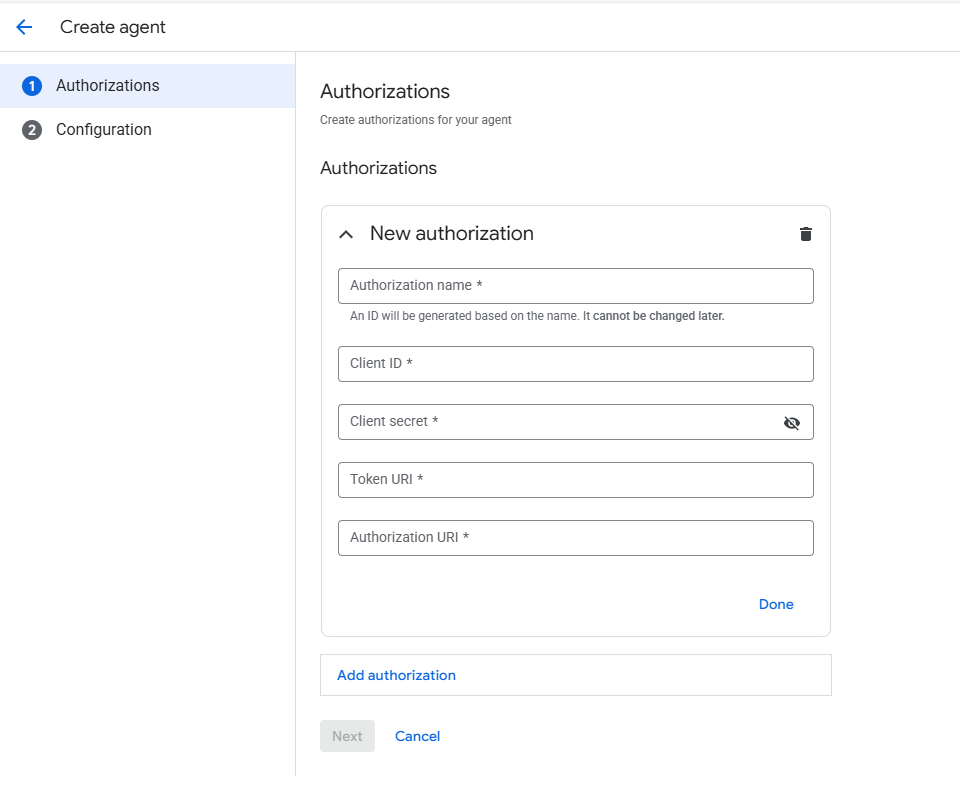 Figure 8: Example Gemini Enterprise Agent Authorisation Settings Screenshot
4. Agent Configuration This step mirrors the JSON body we constructed in the API call. You must provide:
- Agent name: The display name visible to users in the UI.
- Agent description: This is the critical “tool description” used by the orchestration LLM. It tells Gemini when to route a user’s request to this specific agent.
- Agent Engine reasoning engine: Enter the full resource path of your deployed agent (e.g., projects/{project}/locations/{location}/reasoningEngines/{reasoningEngine}).
Once filled, click Create.
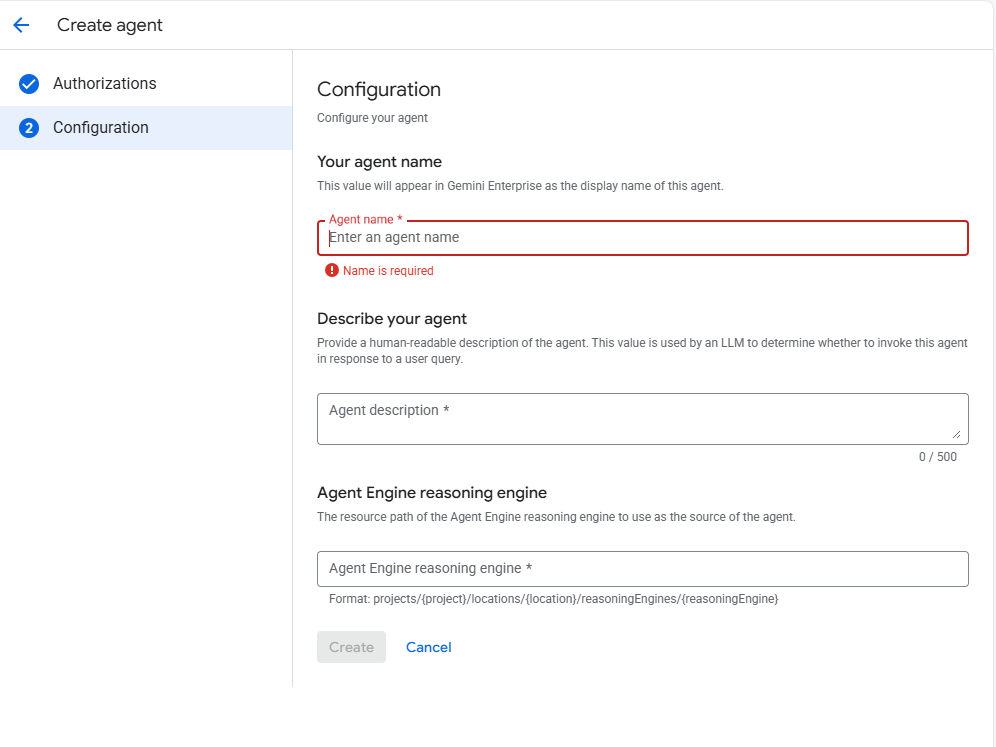 Figure 9: Example Gemini Enterprise Agent Configurations Settings Screenshot
5. Verification Your new agent will now appear in the Agents list under the Our agents tab. Ensure the Agent state is marked as Enabled, and it is ready for use.
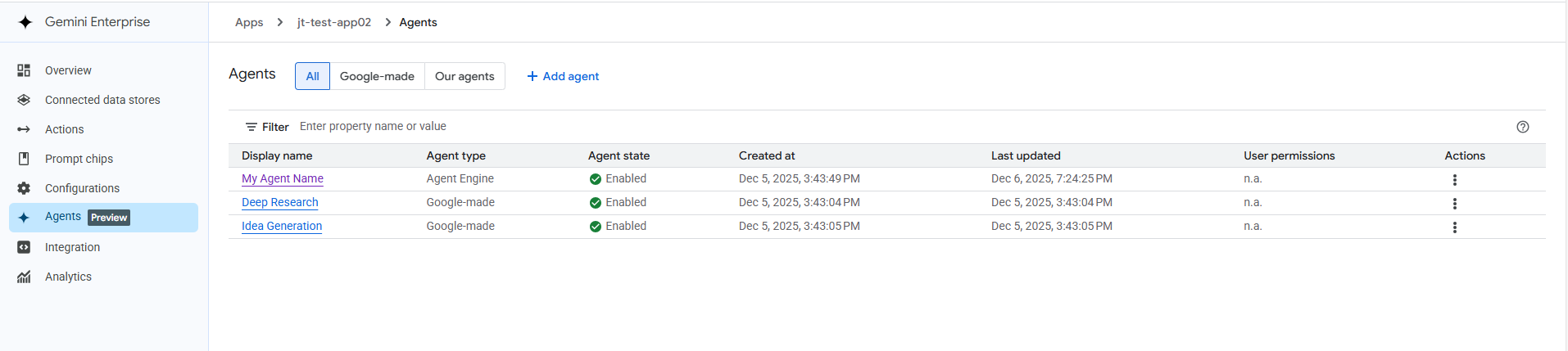 Figure 10: Example Gemini Enterprise Imported Agents View Screenshot
Step 3: Test Drive in Gemini Enterprise
Once the API returns a success message (and a resource name), your agent is live and can be accessed via Gemini Enterprise!
- i. Navigate: Go to the Gemini Enterprise page in the Google Cloud Console.
- ii. Select App: Choose the Gemini Enterprise app where you added the agent.
- iii. Enable Web App: In the main menu, select Integration and ensure “Enable the Web App” is toggled on.
- iv. Launch: Click the web app link provided.
- v. Find Your Agent: You will see your new agent listed under the “Agents” section in the navigation menu.
The User Experience
If you set up OAuth, the first time a user interacts with your agent, Gemini Enterprise will prompt them for authorisation. They will see an “Authorise” button, followed by the standard OAuth consent screen. Once granted, your agent can act on their behalf!
💡 Pro Tips for Developers
1. Make it Chatty (Status Updates) ADK agents can send real-time feedback to the UI. Instead of the user staring at a blank screen while your agent crunches numbers, you can display messages like “Executing code review…” .
In your Python code, you simply update the state dictionary:
callback_context.state["ui:status_update"] = "Starting code generation."
2. Using the User’s Identity If you used OAuth, your Python agent can access the user’s token via tool_context.state. This allows you to make API calls (like searching the user’s Google Drive) securely, impersonating the user who is chatting with the agent.
# Access token is stored in the temp namespace
access_token = tool_context.state[f"temp:{AUTH_ID}"]
3. Updating Your Agent If you need to change the description or the underlying reasoning engine, use the PATCH command.
Warning: You must provide displayName, description, tool_settings, and reasoning_engine in the update request, even if they haven’t changed.
Conclusion: Moving From Pilot to Production
Registering your ADK agent is more than just a configuration step; it is the bridge that turns a siloed backend agent service into a scalable enterprise asset. By leveraging Gemini Enterprise as your orchestration layer, you do not just remove the operational burden of managing custom UIs and authentication, you also solve the critical challenges of centralised governance and future-proof scalability.
Instead of fighting “agent sprawl” across fragmented cloud services, you have established a unified control plane. You now have a deployed, secured, and discoverable agent ready for your users, with the infrastructure in place to manage a fleet of agents as easily as you manage one. Now, it is time to iterate on the intelligence!
Thanks for taking the time to read this blog, I hope you find it useful when integrating ADK agents with Gemini Enterprise. Please feel free to share, subscribe to be alerted to future posts, follow me on LinkedIn, and react/comment below!